Introduction
Windows 11 is forcing us to use AI, ads, and many other features most people don’t want. Here is how you disable AI in Windows.
In recent years, Microsoft changed Windows from a local operating system to an always-online, cloud-based, agentic one full of AI slop, ads, and unwanted features.
Here are some of the feature that nobody asked for and nobody wants:
- Windows Recall
- Windows Copilot
- Start menu searches the web
- Ads everywhere
- Excessive telemetry information
- …
I have been using Windows for years and it wasn’t a problem until recently. Due to some app constraints, I cannot switch to Linux and I am also not a big fan of virtual machines or dual boot solutions.
But Microsoft basically forced me to do something. I started hacking the registry and try out programs and scripts to make Windows a bit to what it used to be:
A productive working and gaming environment
Here is what I tried out to tame Windows. I hope it helps you too!
O&O ShutUp10
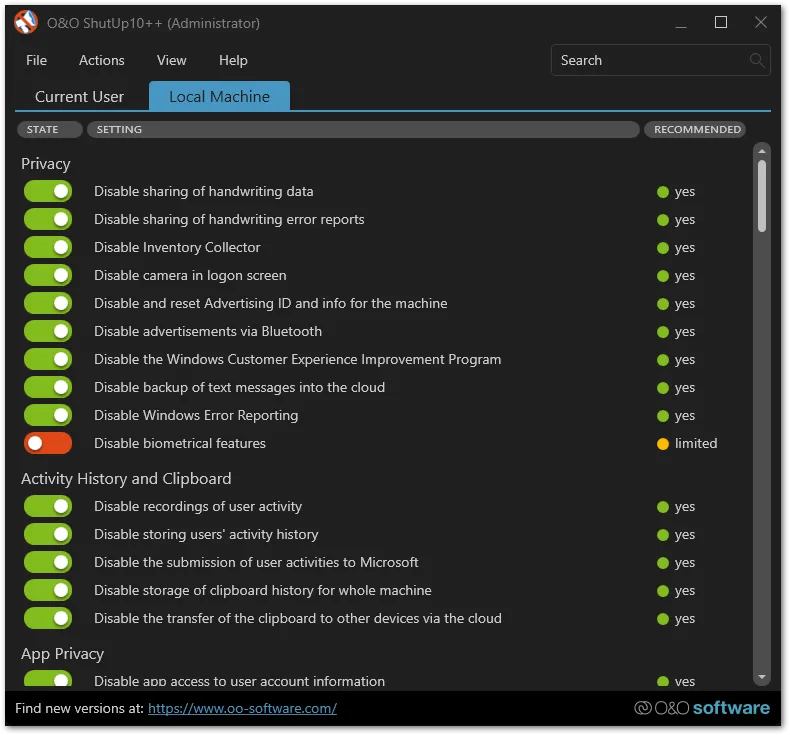
O&O ShutUp10 is a graphical tool with countless options to customize windows. The settings are grouped by topics like privacy, Microsoft Office, Windows AI, or Microsoft Edge. You can apply the changes for the current user or the entire machine. Just enable or disable a switch and the tool does the rest.
It shows you recommended settings, describes all settings in detail with possible consequences, and creates a restore points before making any changes.
Under the hood, the tool modifies registry keys. It’s a handy shortcut if you don’t want to deal with all the settings yourself.
✅ Free to use and highly recommended!

CrapFixer
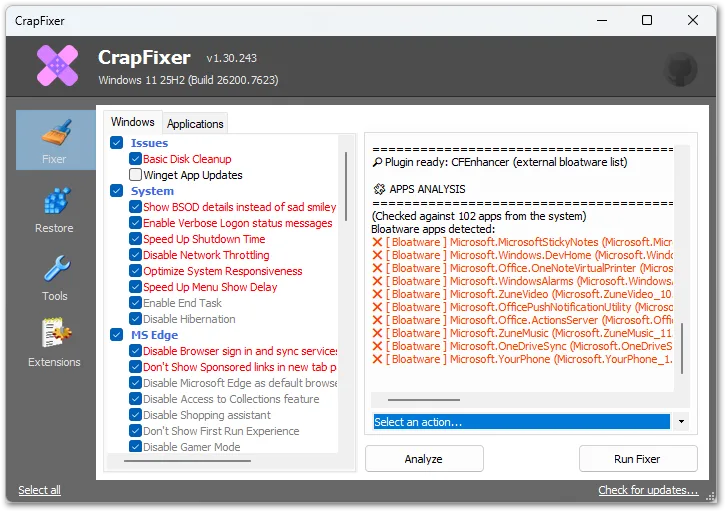
CrapFixer looks like XP-Antispy or CCleaner (the older generation might remember those tools), has many options, does a good job (can even disable Windows Recall), and is under active development.
It is kind of the same like O&O ShutUp but has more Windows configuration options built in. Like a customizer with additional privacy focus.
Just click “Analyze”, then “Run Fixer” and your settings will be applied.
✅ Free to use and highly recommended!
RemoveWindowsAI
Another tool that made a good impression: RemoveWindowsAI.
It’s a collection of PowerShell scripts focused on removing AI features like Copilot, Recall, or AI-editing tools in Paint or Notepad.
It even tries to prevent the reinstallation of AI features from Microsoft by replacing the packages with dummy versions. So far, this works great for me!
Usage is not that easy. You need to be comfortable with executing PowerShell commands. The documentation in the repository is excellent and the development is active.
Use this tool to get rid of more AI stuff in Windows than the others. However, it only focuses on AI. Nothing else.
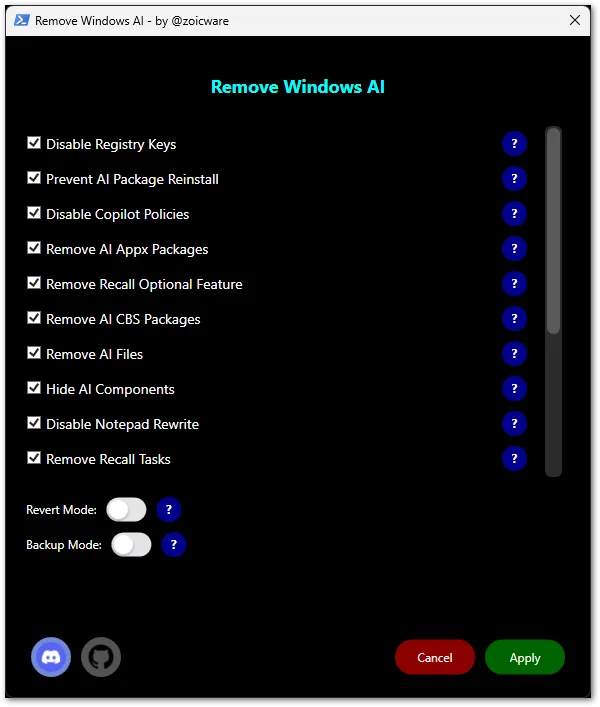
✅ Specialized on removing and disabling AI features
Not recommended tools 👎
- Windows Privacy Dashboard (dead since 2021)
- Debotnet (Windows 10 only, dead since 2019)
- Windows10Debloater (Windows 10 only, dead since 2021)
- DestroyWindows10Spying (Windows 10 only, dead since 2016)
Although the tools are dead, some of the scripts could be working. A lot of experimenting is required here.
Conclusion
With this guide, you can get rid of a lot of AI slop in Windows. Say goodbye to Recall and Copilot. The proposed tools are reliable and stable. Just remember to create a backup before making any changes. A bad registry modification could ruin your entire system.