How To Debug Firebase Analytics Events From A Flutter Web App
Introduction Link to heading
The Firebase Analytics Debug View is a handy tool to check what events your app sends in real time. However, it requires a bit of setup to work from a Flutter web app. Here is how to debug Firebase Analytics events from a Flutter web app.
Setup Link to heading
The initial step is to connect your Flutter app with your Firebase project. Follow my guide in case you haven’t done this yet.
To work with Firebase Analytics, you then need to install the firebase_analytics and firebase_analytics_web (only for Flutter web apps) packages.
In your code, get a reference to Firebase Analytics like this:
Dart
final FirebaseAnalytics _analytics = FirebaseAnalytics.instance;
After that, you can log events. Here are some examples:
Dart
// user opens the app
_analytics.logAppOpen();

// user clicks on a promotion element
_analytics.logSelectPromotion(creativeName: productName);

// user activates a product upgrade
_analytics.logEvent(name: "product_activation", parameters: {"license_key": licenseKey});
Firebase Analytics offers predefined operations but when you have custom events, the generic logEvent() method is your friend.
Using the Debug View Link to heading
The Firebase Analytics Debug View is part of the Firebase Console. In your project go to Analytics -> Debug View to open it.
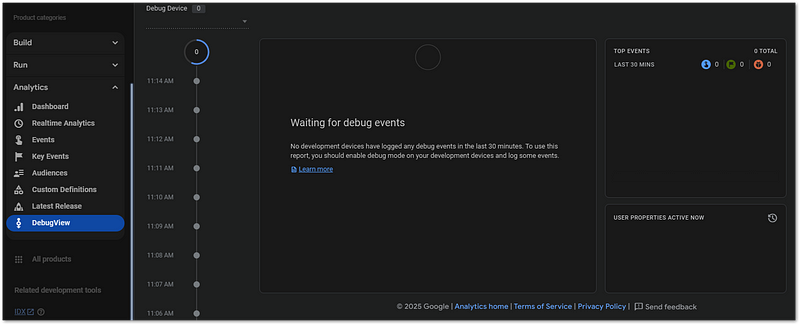
Firebase Analytics Debug View waiting for debug events
When you run your app directly from VS Code and trigger events, nothing will show up in the debug view. To make it work, you need to install the Google Analytics Debugger as a browser extension.
Launch your Flutter app on a web server with the command
Bash
flutter run -d web-server
The command shows an url to access the instance. Open it with your browser that has the Google Analytics Debugger installed and enabled.
💡 Tip
Why do you need to launch a web server?
When VS Code opens a browser window with your web app, it uses
a temporary profile which has no extensions installed. That’s
why the events are not reported to the Firebase Analytics Debug View.
Trigger some events to test it. It might take up to 15 seconds for the events to appear. Eventually, you should see something like this:
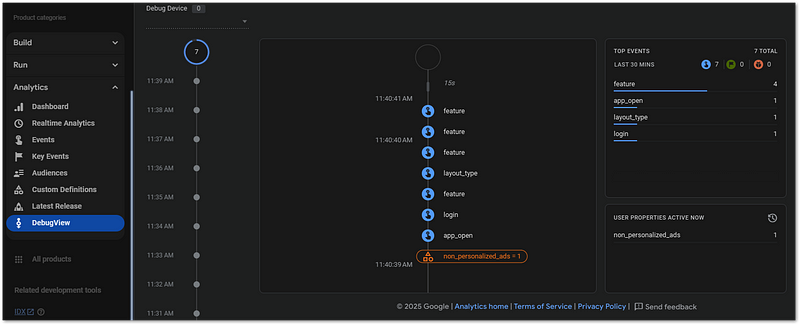
Firebase Analytics Debug View with events reported from a Flutter web app
And this is how to debug Firebase Analytics events from a Flutter web app.
Conclusion Link to heading
In this article I showed you how to debug Firebase Analytics events from a Flutter web app. It’s not as simple as when testing mobile apps but once you know how it works, it’s not a big deal anymore.
Related articles Link to heading

How To Monitor Your Mobile Apps With Firebase Crashlytics Link to heading
Learn why your apps crash and why you get complaints from users. Here is how to monitor your mobile apps with Firebase Crashlytics. Get crash trends, grouped issues, exception types and messages, source code location, stack traces, device types, and much more!
How To Enable Firestore Cache In Flutter Web Apps Link to heading
Reduce database load and add offline capabilities to your apps. Here is how to enable Firestore cache in Flutter web apps. If you target Android or iOS, caching is enabled by default!
How To Host Your Flutter Web App With Firebase Hosting Link to heading
Here is how to host your Flutter web app with Firebase Hosting. This article guides you through all the steps needed. This service is free of charge!