How To Install Packages In Your Flutter App
Introduction Link to heading
This short article shows how to install packages in your Flutter app so that you can use existing code and you don’t have to write everything yourself.
With packages, the development of apps can be accelerated and simplified by a lot. We have a look at how to find packages, how to add them to our app, and how we can use them in the code. For demonstration purposes, I am going to use the package url_launcher in this example. Here is how to install packages in your Flutter app.
Find packages Link to heading
Most Flutter and Dart packages are hosted in the official package repository on pub.dev. You can use it to get detailed information about a package, a usage example, and installing guidelines.
A collection of famous and good packages is Flutter Awesome. If you need inspiration on what packages are out there, check out this website.
✅ Did you find a package that you want to use? Then let’s install it together in the next part.
Packages on pub.dev Link to heading
There are two ways to install packages in your app. Either by using the command-line interface or by manually adding entries to your pubspec.yaml file.
Install with Flutter CLI Link to heading
Navigate to the root folder of your project and execute the command flutter pub add url_launcher. This will add a new entry in your pubspec.yaml file with the most recent version of the package available. Furthermore, it will download the sources and make the package ready for use.
Install manually Link to heading
Add a new entry in your pubspec.yaml file under the dependencies node with the name of the package and a version specifier like this: url_launcher: ^6.0.20. You can find the most recent version on the package’s page on pub.dev.
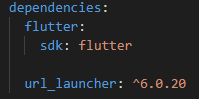
Package url_launcher in pubspec.yaml
Afterward, you need to execute the command flutter pub get to make the package ready for use. Some IDEs like Visual Studio Code will automatically execute the command when the pubspec.yaml file has changed.
✅ Is your package installed? Great! Then let’s use it in the code!
Use packages Link to heading
To use a package in your code, you need to import it. In our example the import command looks like this:
Dart
import 'package:url_launcher/url_launcher.dart';
For usage instructions, check the example tab on pub.dev for your package.
Packages on your local machine Link to heading
There are cases when you need to reference a package from your local file system. With the following example, you can include it in your pubspec.yaml:
YAML
dependencies:
  library_name:
    path: /path/to/library_name
The path needs to point to the root folder of the library!
Packages in a GIT repository Link to heading
Let’s assume, your package is not hosted on pub.dev but in a GIT repository like GitHub, Bitbucket, or others. Then, you can reference it in your pubspec.yaml with the following lines:
YAML
dependencies:
  library_name:
    git:
      url: https://github.com/user/library_name.git
      ref: main
This will reference the main branch of the repository. You can also use other branch names, commit ids, or tags.
If the repository is private and you have an access token, use the following schema:
YAML
dependencies:
  library_name:
    git:
      url: https://<access-token>@github.com/user/library_name.git
      ref: main
SSH access to private repositories is also possible with this approach:
YAML
dependencies:
  library_name:
    git:
      url: git@github.com:user/library_name.git
Packages in a custom repository Link to heading
If your package lies in a custom repository, you can also include it in your Flutter apps. Reference it in your pubspec.yaml like this:
YAML
dependencies:
  library_name:
    hosted: <repo-url>
    version: ^1.11.9
Usually, you have a token to authenticate with your repository. Run the command dart pub token add <repo-url> and then enter the token in the next step. From now on, the tooling will use this token whenever it needs to access the given repository.
A major benefit of custom repositories is that you can specify versions that you want to use just like with official package repository pub.dev.
Conclusion Link to heading
With this guide, you should know how to install packages in your Flutter app. For more information about packages go to the official Flutter documentation.
Related articles Link to heading

Create a new Flutter project in three different ways Link to heading
This short article shows how to create a new Flutter project, so you can start working on your app.
The Flutter pubspec.yaml in detail Link to heading
The pubspec.yaml file is the main configuration file for your Flutter app. In this article, we’ll have a look at its contents.
All you need to know about the default Flutter project folders and files Link to heading
A new Flutter project contains a lot of files and folders. In this article, we’ll inspect them and reveal their purposes.